Employee Scheduling Software: 2026 Buyer’s Checklist
Compare software employee scheduling features, costs, and rollout needs before choosing a tool for shift coverage, labor control, and manager time savings.
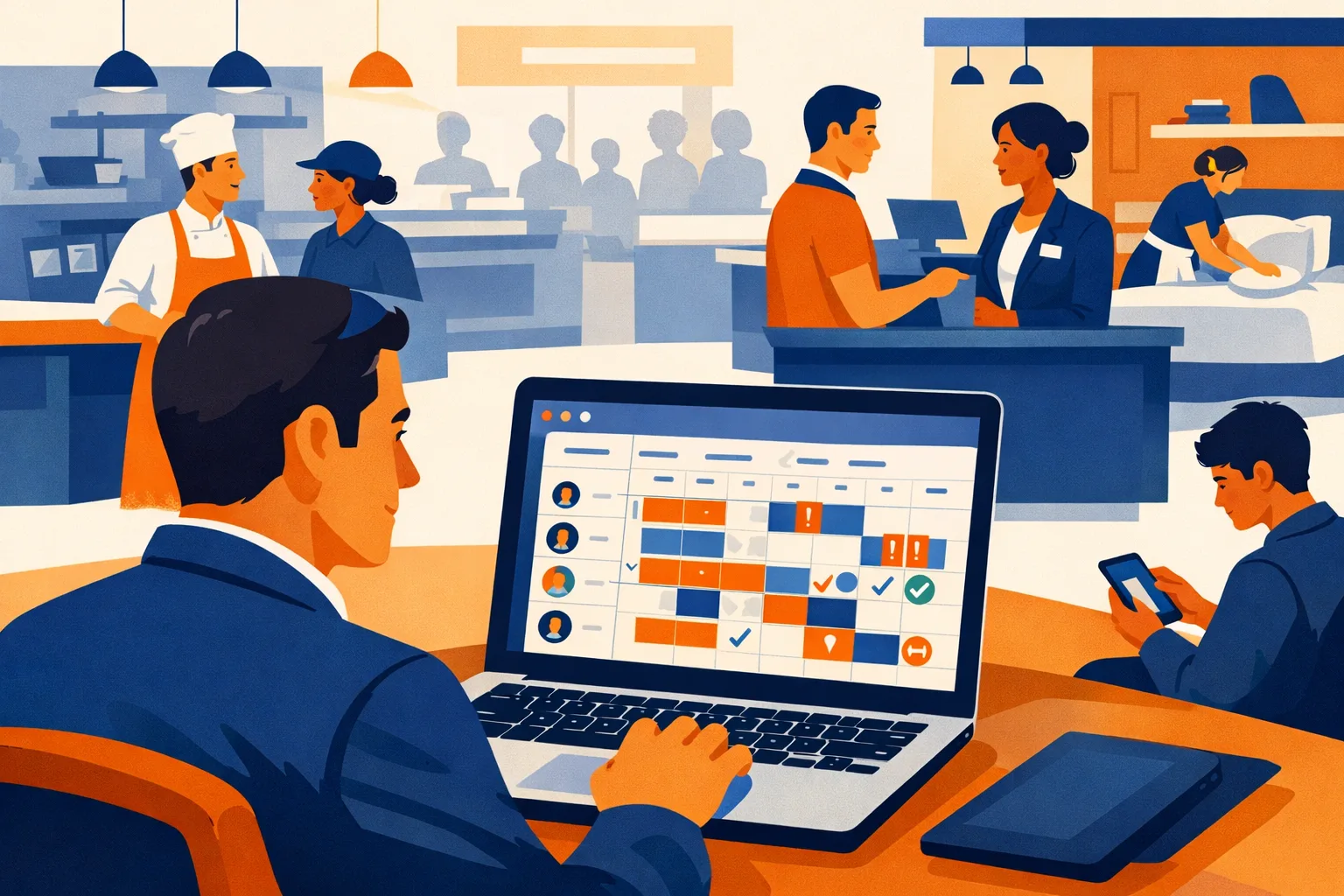
A missed opener, an unplanned double, and three texts from employees asking “Am I working today?” can burn through a manager’s morning before the first customer walks in. If your schedule still lives in spreadsheets, group chats, paper printouts, or one manager’s memory, every change creates risk: uncovered shifts, overtime creep, payroll errors, and frustrated employees.
For multi-shift teams, software employee scheduling is no longer just a digital calendar. The right system should help managers build coverage faster, control labor costs, handle shift swaps without chaos, and give employees clear access to their schedules. The wrong system becomes another admin task your supervisors avoid.
This buyer’s guide is built for restaurant managers, retail operators, hotel supervisors, warehouse leads, and small business owners comparing scheduling software in 2026.
What Software Employee Scheduling Should Actually Solve
Scheduling software should do more than make a prettier rota. For shift-based teams, the buying decision should focus on operational problems that cost time and money every week.
The core problems to look for
A strong scheduling platform should help you reduce:
- Coverage gaps from missed availability, call-outs, or poor handoffs
- Overtime surprises caused by accidental over-scheduling
- Manual admin from texting, spreadsheet editing, and reposting schedules
- No-shows and late arrivals caused by unclear communication
- Payroll errors from disconnected schedules and timesheets
- Compliance risk around breaks, rest periods, minors, and local labor rules
- Manager burnout from rebuilding schedules every week from scratch
If a product cannot clearly explain how it improves those areas, it may be a calendar tool rather than workforce scheduling software.
For more scheduling operations guidance, see ShiftSynch’s scheduling resources.
Who Needs Employee Scheduling Software Most?
Not every team needs a complex workforce management system. But if your business runs multiple shifts, locations, job roles, or hourly teams, software can save hours of manager time each week.
Good-fit teams
Software employee scheduling is especially useful for:
- Restaurants with front-of-house, kitchen, bar, and delivery shifts
- Retail stores with openers, closers, stockroom, cashier, and sales floor roles
- Hotels with front desk, housekeeping, maintenance, and night audit schedules
- Warehouses with picking, packing, receiving, dispatch, and supervisor shifts
- Healthcare-adjacent or service teams with fixed coverage requirements
- Multi-location small businesses sharing employees across stores
- Seasonal businesses managing rapid hiring and changing demand
Warning signs you have outgrown manual scheduling
You are likely ready for scheduling software if:
- Managers spend more than 2 hours per week building or fixing schedules
- Employees regularly ask for schedule clarification after it is posted
- You rely on screenshots, group texts, or paper schedules
- Overtime is discovered after it has already happened
- Shift swaps happen without manager approval
- Availability is stored in messages, notebooks, or memory
- Schedule changes are not reflected in payroll or timesheets
- Employees work at more than one location or in more than one role
A small team can survive with a spreadsheet for a while. A multi-shift team eventually pays for manual scheduling through overtime, missed coverage, and manager time.
What to Compare Before You Book Demos
Before you compare vendor demos, get clear on your scheduling reality. Most poor buying decisions happen because managers evaluate software based on features instead of workflow.
Start with your current scheduling process
Document how scheduling works today:
- Who collects availability?
- Where is availability stored?
- Who builds the schedule?
- How long does it take?
- How are employees notified?
- How are shift swaps handled?
- How are call-outs covered?
- How do managers check overtime risk?
- How does the schedule connect to time tracking or payroll?
- What happens when a shift is changed after posting?
This gives you a real checklist for demos. Ask vendors to show your workflow, not their ideal workflow.
Estimate your current scheduling cost
You do not need a finance team to estimate the cost of manual scheduling. Use a rough internal calculation.
Example:
- Manager scheduling time: 4 hours per week
- Manager hourly cost: $28/hour
- Weekly scheduling labor: $112
- Monthly scheduling labor: about $450
That does not include overtime mistakes, no-shows, payroll corrections, or employee turnover from bad scheduling practices.
For many teams, software is easier to justify when you compare it against manager hours and avoidable labor leakage, not just subscription price.
17-Point Buyer’s Checklist for Software Employee Scheduling
Use this checklist during vendor research, demos, and trials. Score each item from 1 to 5:
- 1 = missing or weak
- 3 = usable but limited
- 5 = strong fit for your team
1. Fast Schedule Building
Managers should be able to create schedules quickly using templates, repeating shifts, drag-and-drop editing, and role-based views.
Look for:
- Weekly schedule templates
- Copy previous week
- Drag-and-drop shifts
- Open shift creation
- Multi-role scheduling
- Multi-location visibility
Ask during the demo:
“Show me how to build next week’s schedule using last week as a starting point.”
If the vendor spends 15 minutes clicking through setup steps, your managers will not use it consistently.
2. Availability Management
Employee availability should be stored directly in the system, not in text messages.
Look for:
- Employee-submitted availability
- Manager approval workflows
- Availability conflict alerts
- Temporary availability changes
- School, second job, or recurring restrictions
- Blackout date handling
Strong availability tools reduce back-and-forth and help managers avoid scheduling someone who already told them they cannot work.
3. Coverage Gap Alerts
The system should show when shifts are understaffed or missing required roles.
Look for:
- Role-based coverage views
- Minimum staffing levels
- Department coverage
- Location coverage
- Visual warnings for empty shifts
- Alerts before schedule publishing
For restaurants, this may mean enough servers, cooks, hosts, and bartenders. For hotels, it may mean front desk coverage during check-in peaks and night audit coverage overnight. For warehouses, it may mean enough pickers, packers, forklift-certified staff, and dispatch coverage.
4. Overtime Visibility
Overtime should not be discovered after payroll closes. Scheduling software should warn managers before overtime happens.
Look for:
- Projected weekly hours
- Overtime alerts
- Employee hour totals while scheduling
- Daily overtime rules where applicable
- Split-shift or rest-period warnings if relevant
- Labor cost estimates
Ask:
“Can a manager see overtime risk before publishing the schedule?”
If the answer is vague, keep looking.
For labor cost planning topics, visit ShiftSynch’s workforce management articles.
5. Shift Swap Controls
Shift swaps can be helpful or chaotic depending on the system. The software should let employees request swaps while keeping manager approval and qualification rules in place.
Look for:
- Employee-initiated swaps
- Manager approval before finalizing
- Role or skill matching
- Overtime conflict warnings
- Availability checks
- Audit trail of who requested and approved the change
Bad shift swap systems create hidden coverage problems. Good ones reduce manager texting without giving up control.
6. Mobile Access for Employees
Hourly employees need schedule access from their phones. If employees cannot easily check shifts, request time off, or receive updates, managers will keep getting texts.
Look for:
- Mobile app or mobile-friendly web access
- Push notifications
- Schedule change alerts
- Time-off requests
- Open shift claiming
- Shift reminders
- Simple login process
During a trial, have a few employees test the mobile experience. If they struggle to find their next shift, adoption will be weak.
7. Manager Notifications That Are Useful, Not Noisy
Alerts should help managers act. Too many notifications create alert fatigue.
Look for configurable alerts for:
- Open shifts
- Time-off requests
- Swap requests
- Overtime risk
- Schedule conflicts
- Missed clock-ins if time tracking is included
- Late schedule publication
Ask if notifications can be customized by role, location, or manager.
8. Labor Law and Compliance Support
Scheduling software should help managers follow rules, but it should not be treated as legal advice. The system should make compliance easier by flagging common risks.
Look for:
- Break rule reminders
- Minor work-hour restrictions
- Rest period warnings
- Overtime thresholds
- Predictive scheduling support where applicable
- Schedule change history
- Records of approvals and edits
Compliance needs vary by state, city, industry, and employee type. For more practical guidance, see ShiftSynch’s labor law resources.
Ask vendors:
“Which scheduling compliance rules can your system flag automatically, and which ones must managers monitor manually?”
A clear answer matters more than a long feature list.
9. Time-Off Request Workflow
Time-off requests should move through a clean approval process.
Look for:
- Employee self-service requests
- Manager approvals or denials
- Calendar view of approved absences
- Request deadlines
- Notes or reason fields
- Blackout dates
- Remaining balance display if integrated with HR/payroll
For small teams, even a basic request workflow can prevent the classic problem: three people asking off the same Saturday and nobody realizing it until Thursday.
10. Multi-Location Scheduling
If employees work across locations, your software needs to handle that cleanly.
Look for:
- Location-based permissions
- Shared employee pools
- Transferable shifts
- Location labor cost views
- Conflict detection across locations
- Different manager access by site
- Consolidated employee schedule view
Without multi-location controls, employees can accidentally be scheduled at two places at once.
11. Skills, Roles, and Certifications
Not every employee can cover every shift. Software should understand qualifications.
Look for:
- Role assignment
- Skill tags
- Certification tracking
- Training status
- Role-based open shifts
- Restricted scheduling for certain tasks
Examples:
- A bartender shift should not be claimed by someone not trained for bar
- A forklift shift should require forklift certification
- A hotel night audit shift should require approved training
- A keyholder closing shift should require keyholder status
This is one of the most practical ways scheduling software prevents coverage gaps that look “filled” on paper but fail in real life.
12. Demand-Based Scheduling Support
Some platforms help match staffing to demand. This can be simple or advanced.
Look for:
- Sales or traffic forecast inputs
- Historical staffing templates
- Event or seasonality notes
- Staffing level recommendations
- Labor budget targets
- Department-level labor planning
You may not need advanced forecasting on day one. But you should at least be able to compare scheduled labor against expected demand.
Hospitality teams can also review ShiftSynch’s hospitality scheduling guides for industry-specific staffing problems.
13. Payroll and Time Tracking Integration
Scheduling, time clocks, and payroll should not operate in separate silos forever.
Look for:
- Timesheet comparison against scheduled shifts
- Early/late clock-in visibility
- Payroll export
- Integration with payroll providers
- PTO sync
- Job code or department mapping
- Approved hours workflow
If you already use payroll software, ask vendors whether they integrate directly, export clean files, or require manual entry.
Manual payroll cleanup can erase the time savings from scheduling software.
14. Permissions and Manager Controls
A shift lead should not always have the same access as an owner or HR manager.
Look for:
- Role-based permissions
- Location-based permissions
- Department-level controls
- Edit vs. view-only access
- Approval limits
- Audit logs
This matters when you have multiple supervisors making changes. You need accountability without blocking daily operations.
15. Reporting That Managers Will Use
Reporting should answer operational questions quickly.
Useful reports include:
- Scheduled hours by employee
- Scheduled labor cost by week
- Overtime risk
- Open shifts
- Time-off volume
- Schedule changes after publishing
- Employee availability conflicts
- No-show or missed shift trends if tracked
Avoid buying based on flashy dashboards. Ask the vendor to show the reports your managers will use every Monday morning.
16. Ease of Setup
A scheduling tool that takes months to configure may be too heavy for a small or mid-sized operation.
Ask about:
- Employee import process
- Role and department setup
- Location setup
- Template creation
- Permission setup
- Payroll integration timeline
- Training requirements
- Support during launch
Typical setup effort for a small to mid-sized team:
| Team Size | Expected Setup Time | Manager Admin Time | Notes |
|---|---|---|---|
| 10–25 employees | 2–5 business days | 2–4 hours | Best if employee list and roles are clean |
| 26–75 employees | 1–2 weeks | 4–8 hours | Plan time for templates and permissions |
| 76–200 employees | 2–4 weeks | 8–20 hours | Multi-location setup and integrations take longer |
| 200+ employees | 4+ weeks | Varies | Consider phased rollout by location or department |
These are planning estimates. Actual timing depends on data quality, integrations, and manager availability.
17. Support During Real Scheduling Emergencies
Support quality matters most when a manager is trying to publish the schedule before dinner rush, weekend traffic, or Monday warehouse start time.
Ask:
- Is support available during your operating hours?
- Is onboarding included?
- Are help articles practical?
- Can managers get live help?
- Is there a customer success contact?
- How are urgent issues handled?
A low-cost tool with weak support may cost more in manager frustration.
Comparison Table: What Type of Scheduling Software Fits Your Team?
Not every buyer needs the same level of system. Use this table to narrow your options before demos.
| Software Type | Best Fit | Strengths | Limitations | Typical Cost/Time Consideration |
|---|---|---|---|---|
| Basic calendar or spreadsheet template | Very small teams with stable schedules | Cheap, familiar, quick to start | No alerts, weak mobile access, manual updates, no overtime controls | Low software cost; high manager time as team grows |
| Standalone scheduling app | Small to mid-sized hourly teams | Faster scheduling, mobile access, swaps, time-off requests | May have limited payroll or compliance depth | Usually faster setup; subscription often based on employees or locations |
| Scheduling + time clock platform | Teams needing schedule-to-timesheet control | Better payroll prep, attendance visibility, labor tracking | More setup required; employees need clock-in training | Moderate setup time; can reduce payroll cleanup |
| Full workforce management suite | Multi-location or larger operations | Scheduling, time tracking, compliance, reporting, forecasting | Higher cost, more configuration, heavier training | Best when operations are complex enough to justify rollout effort |
| Industry-specific platform | Restaurants, hospitality, healthcare, warehouses, or retail niches | Workflows built for specific roles and coverage needs | May be less flexible outside that industry | Good fit if your industry rules drive scheduling complexity |
The right choice depends less on company size and more on scheduling complexity. A 20-person restaurant with variable availability may need stronger scheduling controls than a 60-person office with fixed hours.
Must-Have Features by Industry
Different shift-based businesses face different scheduling pressure points. Use these examples to prioritize features.
Restaurants and Cafes
Restaurant managers need speed and flexibility. Schedules change fast because of weather, reservations, call-outs, and seasonal demand.
Prioritize:
- Role-based coverage by station
- Availability controls
- Shift swaps with approval
- Mobile schedule access
- Labor cost estimates
- Open shift notifications
- Time-off blackout dates
- Templates for lunch, dinner, weekend, and event staffing
Common mistake: letting employees swap shifts without checking role fit. A server cannot always cover bar. A prep cook cannot always cover line.
Retail Stores
Retail scheduling often depends on traffic patterns, promotions, deliveries, and keyholder coverage.
Prioritize:
- Open/close shift templates
- Keyholder scheduling
- Multi-location employee sharing
- Sales floor and stockroom role coverage
- Time-off request visibility
- Part-time availability management
- Schedule publishing notifications
Common mistake: building schedules around employee preference first and coverage second. Good software helps managers balance both.
Hotels and Hospitality
Hotels need 24/7 or extended coverage, often across departments.
Prioritize:
- Overnight scheduling
- Housekeeping boards or room-volume staffing inputs
- Front desk coverage
- Maintenance on-call visibility
- Department-level permissions
- Shift handoff notes
- Compliance and break tracking
Common mistake: treating all hotel departments the same. Front desk, housekeeping, maintenance, and food service have different scheduling rhythms.
Warehouses and Distribution Teams
Warehouse schedules need skill and volume alignment.
Prioritize:
- Shift templates by operation
- Certification tracking
- Role-based staffing levels
- Overtime alerts
- Labor planning by department
- Multi-shift handoff visibility
- Attendance and time clock integration
Common mistake: counting heads instead of usable skills. Five people scheduled does not help if nobody on the shift is certified for the required equipment.
Small Businesses With Hourly Employees
Small businesses need software that is simple enough to use without an HR department.
Prioritize:
- Easy setup
- Mobile access
- Simple time-off requests
- Schedule templates
- Open shift tools
- Basic labor cost visibility
- Affordable pricing
- Responsive support
Common mistake: buying an enterprise system that managers do not have time to configure.
For more manager-focused advice, browse ShiftSynch’s team management resources.
Questions to Ask During a Scheduling Software Demo
A polished demo can hide weak workflows. Ask scenario-based questions that match real scheduling problems.
Coverage and schedule building
Ask:
- “Show me how to build a schedule from a template.”
- “What happens if I schedule someone outside their availability?”
- “Can I see which roles are uncovered?”
- “Can I create an open shift and let qualified employees claim it?”
- “Can I schedule by department, role, and location?”
Overtime and labor cost
Ask:
- “Where do I see projected overtime before publishing?”
- “Can managers see scheduled labor cost?”
- “Can we set labor targets by location or department?”
- “What warnings appear if a shift creates overtime?”
Employee self-service
Ask:
- “How does an employee request time off?”
- “How does a shift swap work from request to approval?”
- “What notifications does an employee receive after a schedule change?”
- “Can employees update availability from their phones?”
Compliance and records
Ask:
- “Which break and rest rules can the system flag?”
- “Can we see an audit trail of schedule edits?”
- “How long are records stored?”
- “Can permissions prevent unauthorized changes?”
Implementation and support
Ask:
- “How long does setup take for a team our size?”
- “Who imports employee data?”
- “What training do managers receive?”
- “What happens if we need help during schedule publishing?”
- “Can we test the system with one department before rolling it out?”
If a vendor cannot demonstrate your exact scenarios, do not assume the feature works the way you need.
Pricing: What to Budget Beyond the Monthly Subscription
Scheduling software pricing varies by vendor, team size, features, and support level. Many products charge by employee, user, location, or feature bundle.
Cost categories to include
Budget for:
- Monthly or annual software subscription
- Setup or onboarding fees, if any
- Time clock hardware, if needed
- Payroll integration costs, if applicable
- Manager training time
- Employee rollout time
- Data cleanup before import
- Ongoing admin ownership
Internal time estimates
Plan for these internal tasks:
| Task | Small Team Estimate | Larger or Multi-Location Estimate |
|---|---|---|
| Clean employee list | 1–2 hours | 4–10 hours |
| Define roles and departments | 1–3 hours | 4–12 hours |
| Create schedule templates | 1–4 hours | 6–20 hours |
| Configure permissions | 30–90 minutes | 2–6 hours |
| Train managers | 1–2 hours | 2–4 hours per manager group |
| Train employees | 15–30 minutes per employee group | Phased sessions by location or shift |
| Pilot and adjust | 1–2 weeks | 2–4 weeks |
Do not skip data cleanup. Bad employee records, outdated roles, and unclear permissions create problems after launch.
Red Flags When Comparing Scheduling Software
Some issues only appear when you ask direct questions or run a trial.
Red flag 1: The mobile app is hard to use
If employees cannot quickly see their shifts, request time off, or respond to open shifts, managers will keep using texts.
Red flag 2: Overtime warnings are buried
Overtime control should be visible during scheduling, not hidden in a report after publishing.
Red flag 3: Shift swaps bypass manager approval
Uncontrolled swaps create coverage and compliance problems.
Red flag 4: Roles and skills are too basic
If the system only sees “employee” and not “server,” “keyholder,” “forklift certified,” or “night auditor,” it may not protect coverage quality.
Red flag 5: Setup requires more admin time than your team can give
A powerful tool that nobody finishes implementing will not help operations.
Red flag 6: Pricing is unclear
You should know what happens when you add employees, locations, time clocks, integrations, or advanced features.
Red flag 7: Support is limited to slow email responses
Managers need help during real operating windows, not three days later.
A Practical 30-Day Evaluation Plan
Do not buy scheduling software based only on demos. Run a structured evaluation.
Week 1: Define requirements
Action list:
- List your current scheduling problems.
- Identify must-have features.
- Count employees, locations, roles, and managers.
- Document payroll and time tracking needs.
- Set a budget range.
- Decide who will approve the purchase.
Time estimate: 2–4 manager hours.
Week 2: Shortlist vendors
Action list:
- Review 3–5 scheduling platforms.
- Eliminate tools without mobile access, overtime visibility, or role-based scheduling.
- Book demos with your top 2–3 options.
- Send vendors your scheduling scenarios before the demo.
Time estimate: 3–5 hours.
Week 3: Run demos and score vendors
Action list:
- Use the 17-point checklist above.
- Ask each vendor to show your real workflows.
- Include at least one frontline manager in demos.
- Compare setup effort and support quality.
- Confirm pricing and contract terms.
Time estimate: 3–6 hours.
Week 4: Pilot with one team or location
Action list:
- Import a small employee group.
- Build one real schedule.
- Test availability, swaps, open shifts, and notifications.
- Ask employees to check schedules on mobile.
- Review manager feedback.
- Decide whether to buy, negotiate, or keep searching.
Time estimate: 1–2 weeks of light testing, with 3–8 active admin hours.
A short pilot will reveal more than a long sales deck.
Implementation Tips After You Choose a Platform
Buying the software is the easy part. Rollout decides whether managers actually use it.
Assign one owner
Pick one person to own setup decisions. This may be an operations manager, HR lead, general manager, or owner.
That person should decide:
- Role names
- Department structure
- Location setup
- Permission levels
- Schedule publishing rules
- Time-off request process
- Shift swap policy
Too many decision-makers slow setup.
Clean up employee data first
Before import, verify:
- Employee names
- Phone numbers
- Email addresses
- Locations
- Departments
- Job roles
- Active/inactive status
- Pay categories if needed for labor cost estimates
- Certifications or skills
Clean data prevents launch headaches.
Create schedule templates before training
Managers learn faster when they see familiar schedules.
Build templates for:
- Standard weekdays
- Weekends
- Holidays
- Events
- Peak season
- Slow season
- Overnight coverage
- Opening and closing shifts
Templates reduce manual work and help new managers follow staffing standards.
Set clear rules for employees
Employees need to know how the new process works.
Cover:
- Where to view schedules
- When schedules are published
- How to request time off
- Deadline for availability changes
- How shift swaps work
- Whether manager approval is required
- Who to contact for urgent call-outs
- What happens if they do not check the app
Keep the policy short. One page is usually enough.
Train managers on exceptions
Most scheduling tools are easy when everything goes as planned. Train managers on exceptions:
- Call-out before a shift
- Same-day schedule change
- Employee unavailable after posting
- Overtime warning
- Unqualified swap request
- Multi-location conflict
- No mobile access issue
- Payroll mismatch
Exception training prevents managers from reverting to texts and spreadsheets.
Common Buying Mistakes to Avoid
Mistake 1: Choosing only by lowest price
Low subscription cost does not help if managers still spend hours fixing schedules manually.
Compare total cost:
- Software price
- Manager admin time
- Payroll cleanup
- Overtime leakage
- Missed coverage
- Training effort
Mistake 2: Ignoring employee adoption
If employees do not use the system, managers become the help desk. Test the mobile experience before buying.
Mistake 3: Overbuying complex features
Forecasting, advanced analytics, and enterprise permissions can be useful. But if your immediate problem is schedule communication and swaps, start with tools managers will use every week.
Mistake 4: Not involving frontline managers
The person who builds the schedule should help evaluate the software. They know the real pain points.
Mistake 5: Forgetting about compliance
Even basic scheduling decisions can create labor law risk. Build compliance checks into your evaluation, especially if you employ minors, operate across states, or work in cities with predictive scheduling rules.
Mistake 6: Buying without a pilot
A trial schedule with real employees will expose issues around logins, notifications, permissions, and workflow fit.
Final Decision Scorecard
Before you sign, score each vendor on the areas that matter most.
Use this simple model:
| Category | Weight | Vendor Score 1–5 | Weighted Score |
|---|---|---|---|
| Schedule building speed | 15% | ||
| Coverage and role controls | 15% | ||
| Overtime visibility | 15% | ||
| Employee mobile experience | 15% | ||
| Shift swaps and time off | 10% | ||
| Payroll/time tracking fit | 10% | ||
| Compliance support | 10% | ||
| Setup and support | 10% |
A tool with the highest feature count is not always the best choice. Pick the one that gives your managers the clearest path to better coverage, fewer manual edits, and more reliable schedule communication.
How ShiftSynch Helps
ShiftSynch is built for managers who run hourly, shift-based teams and need scheduling to be faster, clearer, and easier to control.
With ShiftSynch, teams can manage schedules, reduce last-minute confusion, handle availability, and keep employees aligned without relying on spreadsheets, screenshots, or endless text threads. For multi-shift operations, that means managers spend less time chasing confirmations and more time running the floor.
If you are comparing software employee scheduling options for 2026, include ShiftSynch in your evaluation. Build a real schedule, test your shift swap process, and see how it fits your team’s daily workflow.
Start a trial at shiftsynch.com and see whether ShiftSynch can help your team reduce coverage gaps, overtime surprises, and manual scheduling admin.
Ready to replace the spreadsheet and group text?
Build the rotation, publish shifts, and see qualified coverage in ShiftSynch.
Start free